
Hood Warfare 2 Graphics Settings: FPS and Clarity (2026)
Find Hood Warfare 2 graphics settings, the FPS counter, resolution scale and display confirmation. Use the illustrated menu guide to compare changes on your PC.
FAQ
How do I show FPS in Hood Warfare 2?
Which graphics settings should I lower first?
Are these the best settings for every computer?
How do I save a display change?
Where should you start with graphics settings?
Start with the Show FPS option, rather than copying somebody else’s entire preset. The illustrated walkthrough below identifies the actual Graphics menu controls and the display confirmation dialog. Compare your PC with the official system requirements first; a settings guide cannot establish support for hardware below those requirements.
The menu screenshots come from GameWars and were visually checked for the labels described here. The video changes settings during the recording, so the values differ between frames. They are examples of the interface, not one recommended configuration. Checked on October 17, 2026; later builds may change the menu.
Graphics menu walkthrough
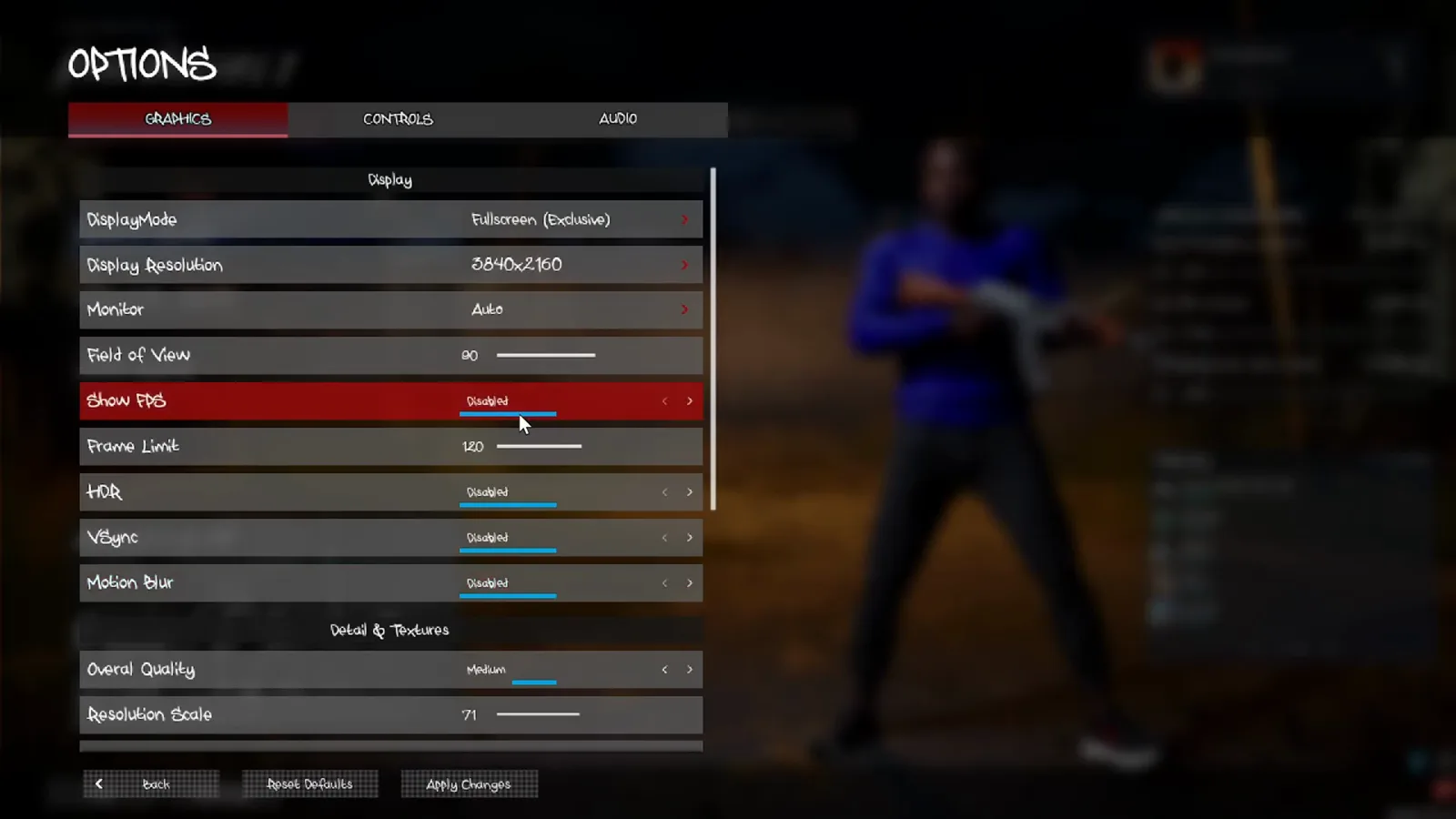
1. Find the display controls and enable Show FPS
Open Options and select Graphics. The Display section contains DisplayMode, Display Resolution, Monitor, Field of View, Show FPS and Frame Limit. Set Show FPS to Enabled so you can observe the result of later changes. Record your current resolution and frame limit before adjusting anything else; the values in this screenshot belong to the source recording.
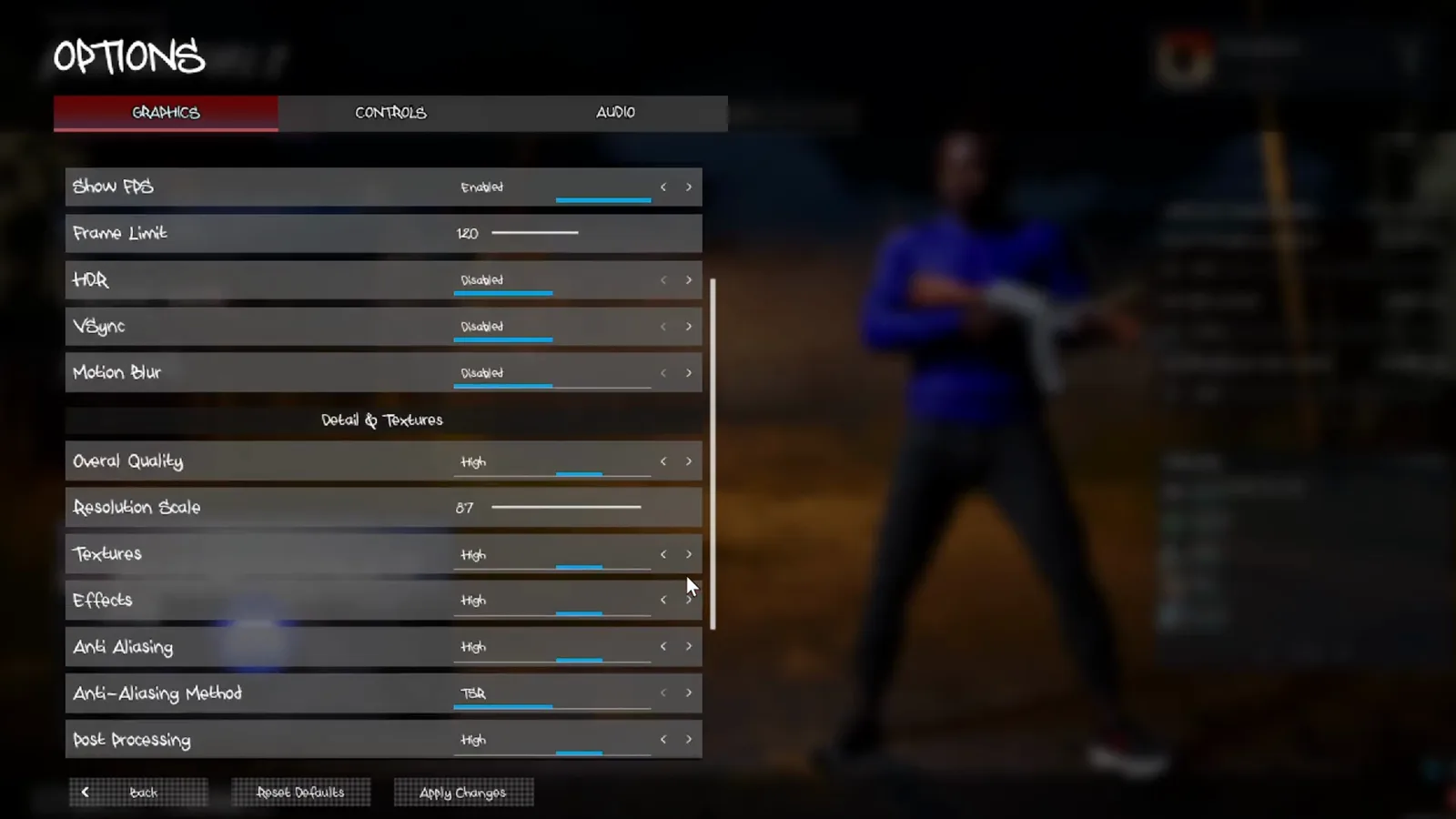
2. Separate resolution scale from the detail options
Scroll down to Detail & Textures. Overall Quality and Resolution Scale appear above Textures, Effects, Anti Aliasing and Anti-Aliasing Method. Write down both the display resolution and resolution scale when comparing images. Keep the other options fixed while you try a different scale or anti-aliasing setting, so you can tell which change affected the result.
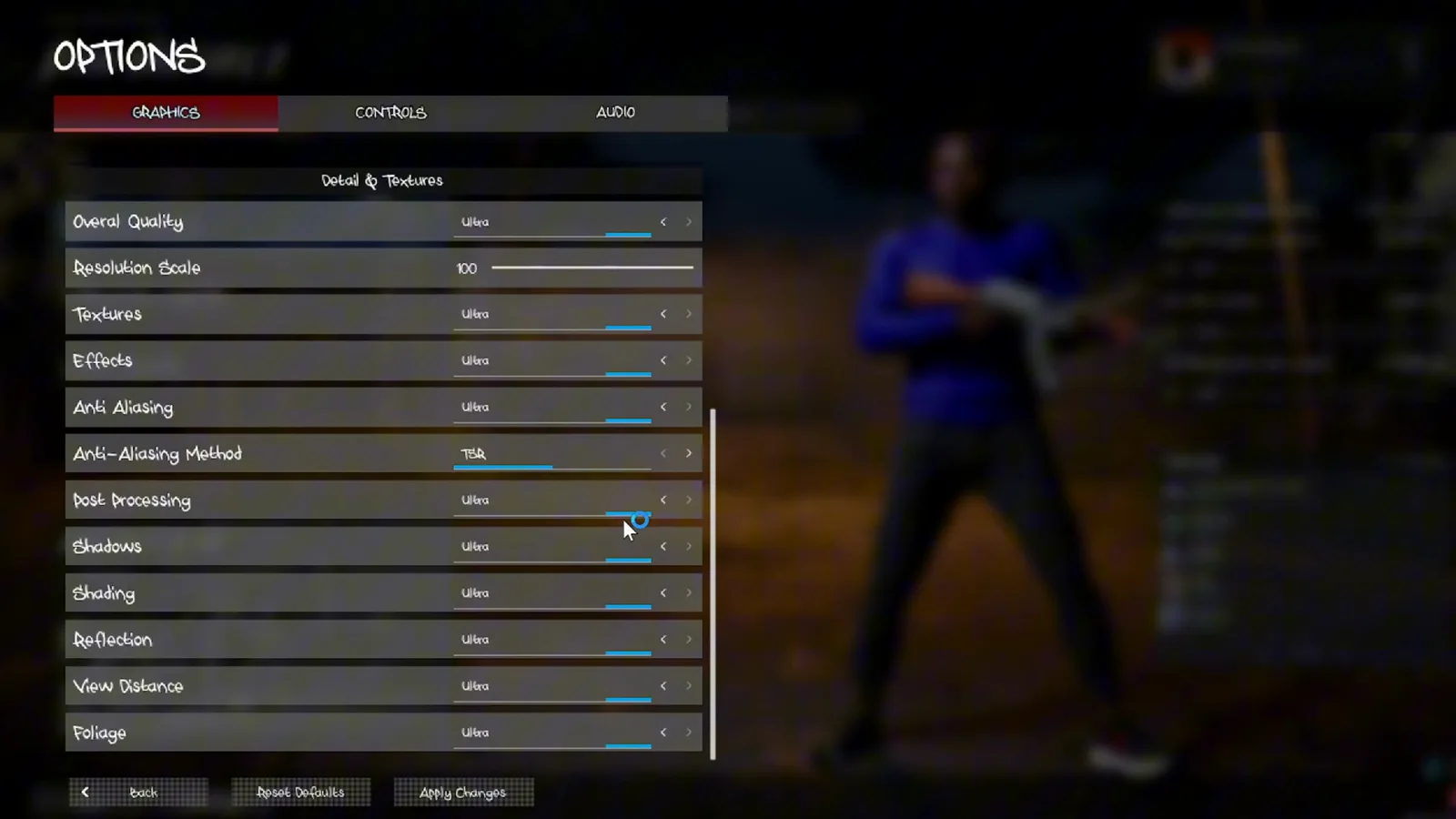
3. Locate Shadows, Shading and Reflection
Continue down the same panel to find Post Processing, Shadows, Shading, Reflection, View Distance and Foliage. These individual options let you compare one detail setting without deliberately changing the whole preset. Note the old value, choose a new value for one option, and leave the others alone for that comparison.
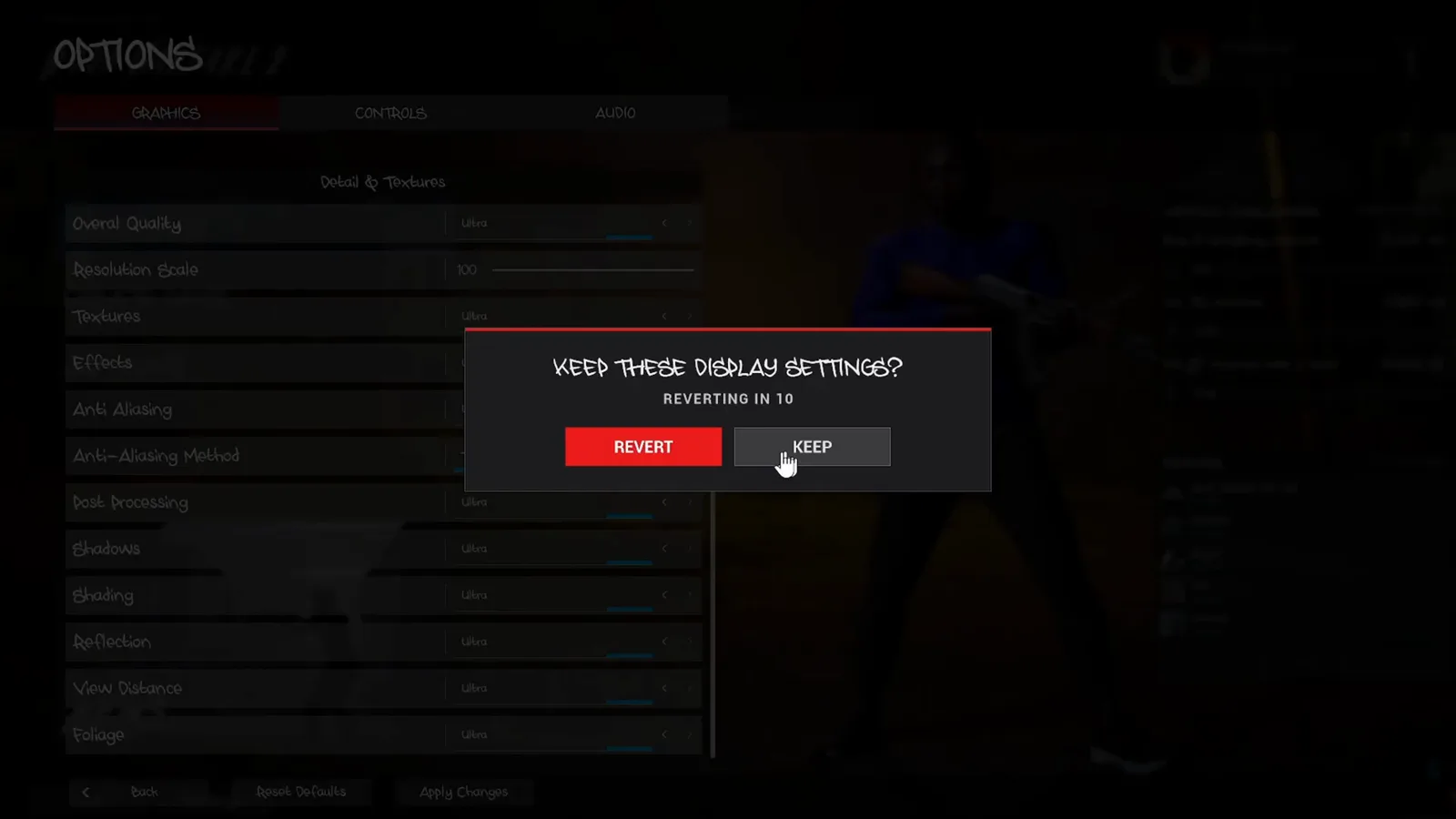
4. Apply the change and check the confirmation
Select Apply Changes at the bottom of the menu. If the Keep These Display Settings dialog appears, check that the display still works and select Keep to retain the change. The recorded dialog also has Revert and a countdown. Return to the same gameplay scene for your comparison, then restore the previous value if you prefer its result.
Which settings are worth comparing first?
In his graphics settings explanation at 2:05, IchibanThug Gaming describes his own setup and preferences. He recommends disabling Motion Blur, uses a field of view of 90, and suggests comparing lower Shadows, Shading and Reflection settings if a computer struggles. His machine and preferences do not establish the best settings for yours.
The same creator prefers Resolution Scale 100 and TSR. The GameWars footage demonstrates that both the scale and quality settings can vary. We have no controlled comparison proving that either creator’s combination is fastest, clearest or most stable across PCs. Treat these as options to investigate, not a benchmark table.
For a simple comparison, use a bot practice match and revisit the same location, viewpoint and action. Record the game build, resolution, scale, frame limit and the single option you changed. Look at both the displayed frame rate and whether you can comfortably read the scene. That is an editorial test method; we have not performed the test on your hardware.
Keep performance, input and technical problems separate
A clearer image does not configure push to talk or controller input. Use the controls and voice chat guide for those settings. Missing sound or a failure to join a match belongs in the documented fixes and updates checklist rather than an unverified graphics workaround.
Once you have a comfortable baseline, follow the beginner practice plan or try the Chain Snatch pickup exercise. Keep that baseline for a session before changing several unrelated options; otherwise it becomes difficult to remember which change you actually preferred.
Related Articles
guides
Hood Warfare 2 Controls: Voice Chat, T Key & Controllers
Find the confirmed Hood Warfare 2 push-to-talk key, team and lobby voice options, PC controller support and sensible input checks.
guides
Hood Warfare 2 Platforms: PS5, Xbox & Crossplay Status
Check the confirmed Hood Warfare 2 Windows release, controller support and the current evidence for PS5, Xbox and crossplay availability.
guides
Hood Warfare 2 System Requirements: Can Your PC Run It?
Compare Hood Warfare 2 minimum and recommended PC specifications from Steam, including graphics cards, Windows, DirectX and storage.
Was this helpful?
Thanks for the feedback!